 |
CriWare Unreal Engine
Plug-ins for CriWare solutions.
|
|
CriWare Unreal Engine
Plug-ins for CriWare solutions.
|
Atom Audio Buses combine sound sources into a single signal path.
The combined audio signal can be used in two primary ways:
To create an Audio Bus:
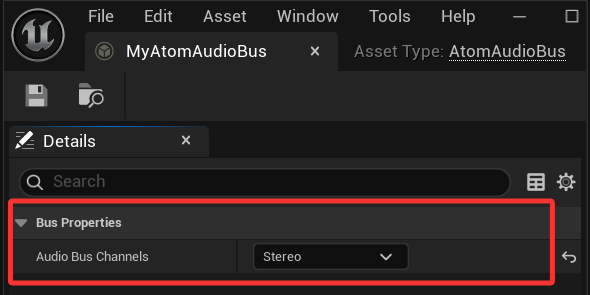
To edit an Audio Bus, you can double-click it in the Content Browser or right-click it and select Edit from the context menu. Then, in the Details panel that appears, set the number of Audio Bus Channels you want to use.
/note If you send audio to an Audio Bus with a different channel configuration, it will be mixed accordingly. For example, sending a mono source to a stereo Audio Bus will upmix to stereo.
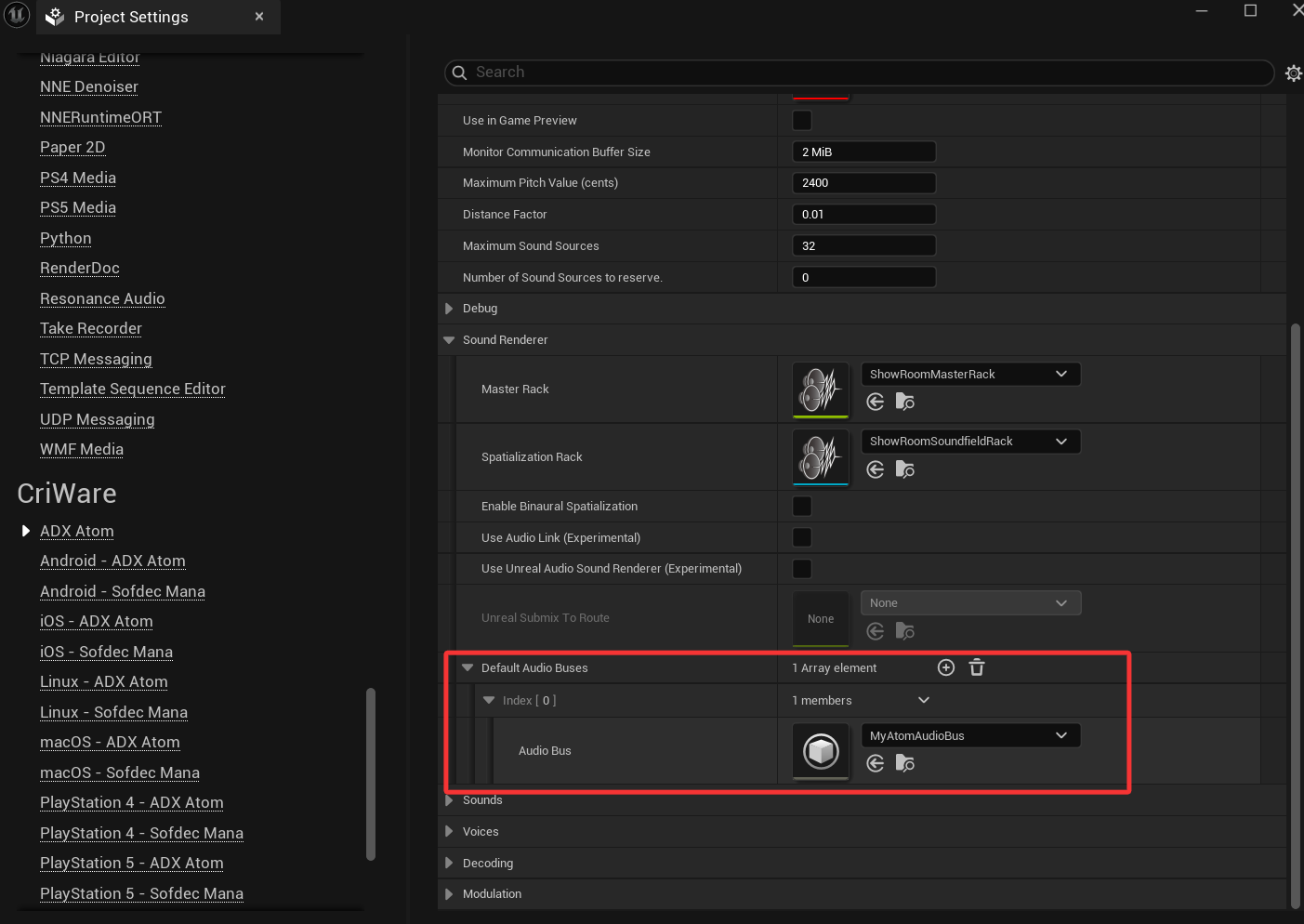
You have to start an Audio Bus before it can receive audio. Set the Default Audio Buses in the Project Settings to have the specified Audio Buses start automatically.
You can also start an Audio Bus manually by using the Start Audio Bus Blueprint node. Similarly, you can stop an Audio Bus by using the Stop Audio Bus Blueprint node.
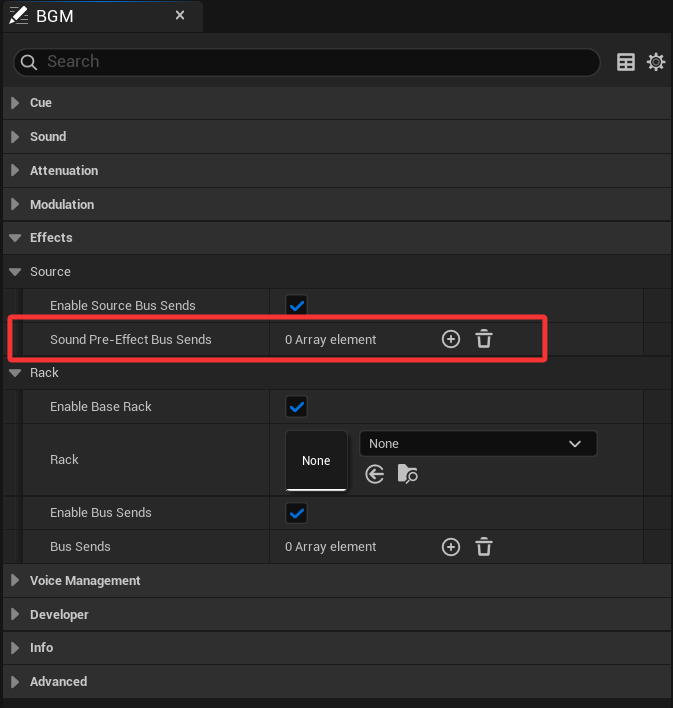
You can set an Audio Bus to send audio to in the Details panel for your source asset (such as a Atom Sound Wave, Atom Sound Cue). Under Effects > Source, click the Add (+) button for Pre-Effect Bus Sends to add a bus send that will occur before or after an optionally provided Source Effect Chain. (Post-Effect Bus Sends are not available yet in ADX.)
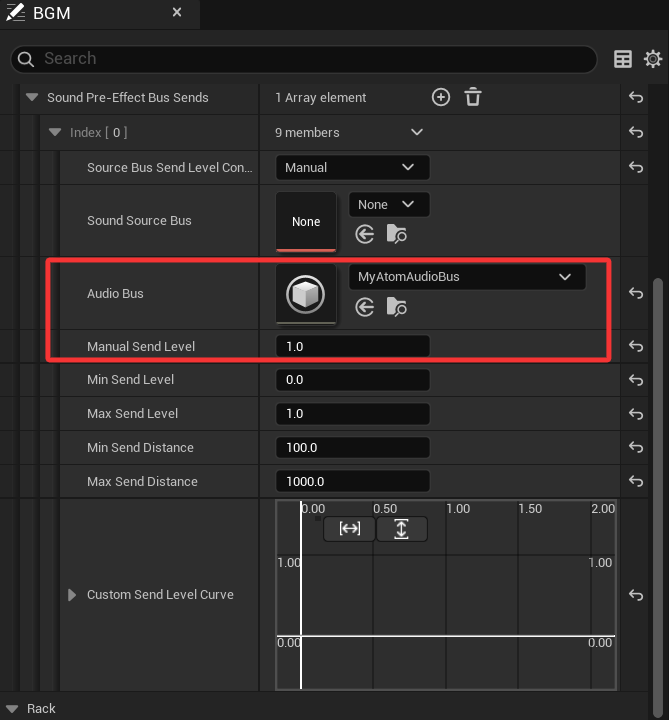
Expand the new bus send index to set the Audio Bus and the Send Level.
/note You can change the Source Bus Send Level Control Method (in combination with the other related properties) to send based on distance or a custom curve.
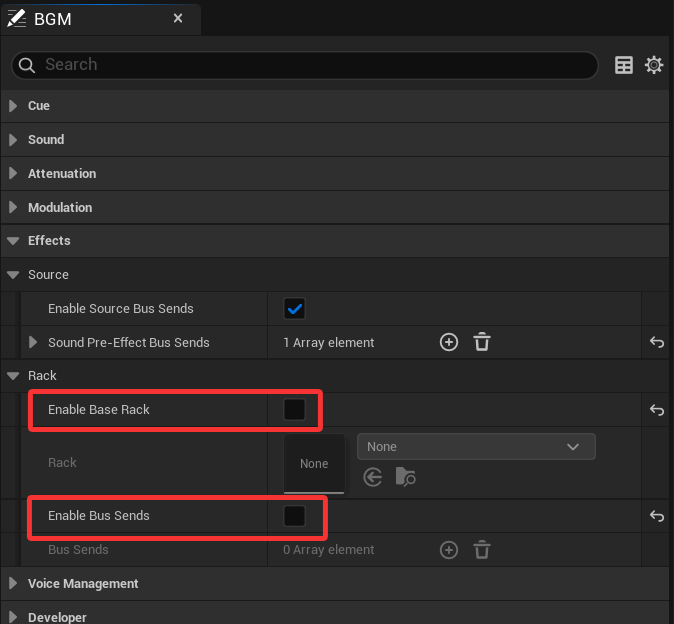
If you want the original source audio to be inaudible (by only sending it to the Audio Bus), you can disable Enable Base Rack and Enable Bus Sends under Source > Rack in the Details panel.
By default, Audio Buses are not audible. To output Audio Bus audio, you must use an Atom Source Bus.
A Source Bus renders the output of an Audio Bus. Source Buses can use sound source features, such as spatialization, attenuation, and concurrency resolution. They can even output audio to other Audio Buses and Source Buses.
To create an Atom Source Bus:
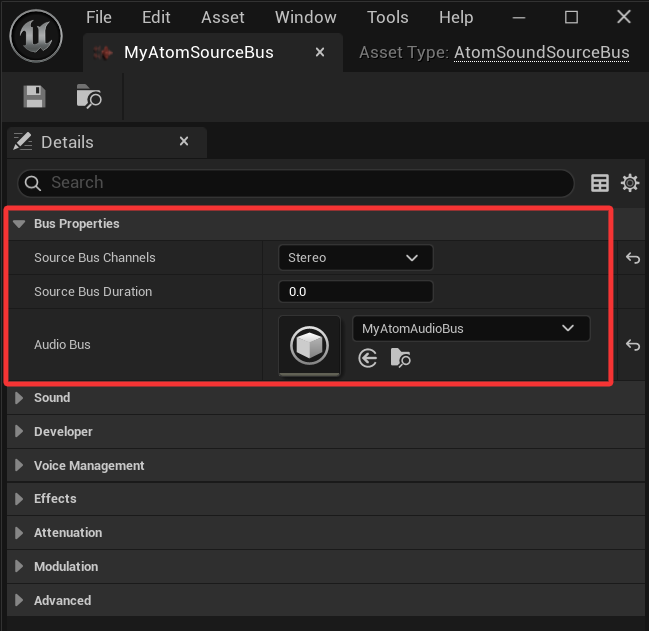
Set the Atom Audio Bus you want to render in the Atom Source Bus Details panel. Additionally, you can select the number of Source Bus Channels and the Source Bus Duration.
If the Source Bus Duration is set to 0, the Source Bus will play indefinitely. Use any positive value to create a one-shot sound source that will stop after the duration.
Atom Audio Buses are comparable to Atom Racks and Buses but differ in several important ways:
See AtomRack and AtomBus Overview for more information.
 1.9.7
1.9.7