 |
CriWare Unreal Engine
Plug-ins for CriWare solutions.
|
|
CriWare Unreal Engine
Plug-ins for CriWare solutions.
|
This article introduces how to play audio using the UE function.
*For information on the sequencer function, please see the Unreal Engine official homepage.
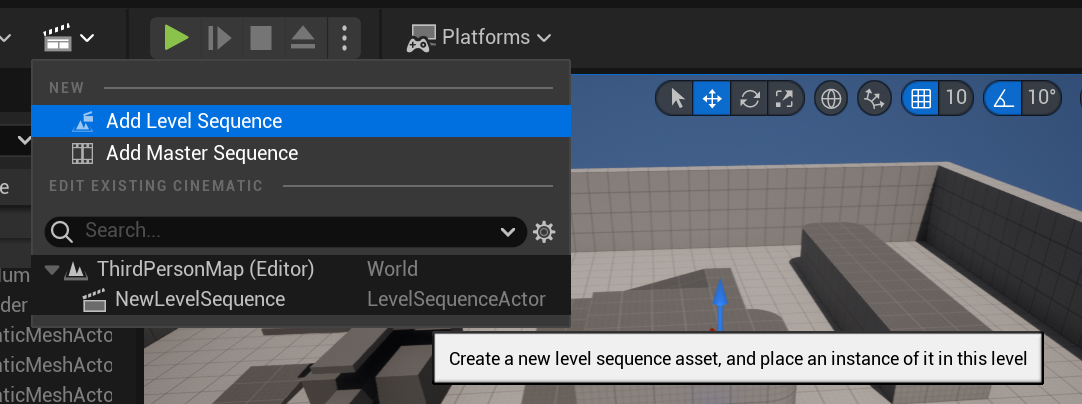
To use sequencer functionality, you need to Add a sequence asset containing sequencer data.
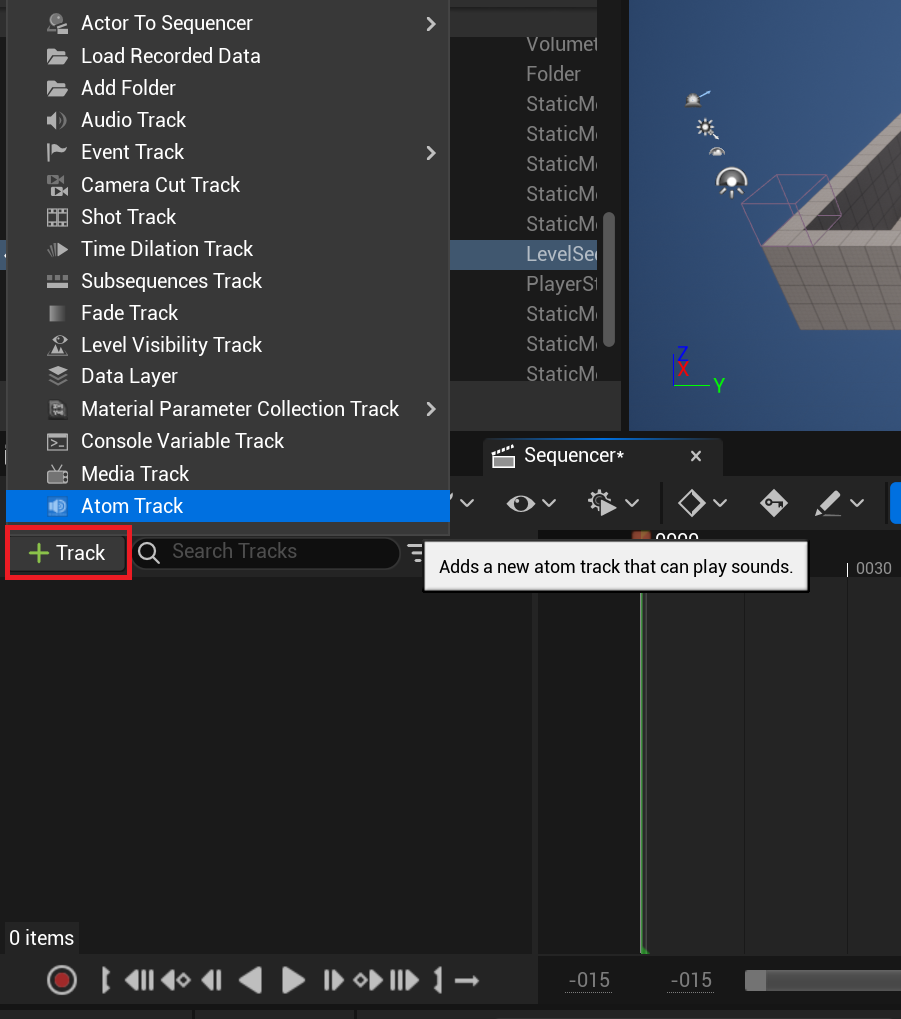
Add Atom Track from the track Add button on the sequence editor.
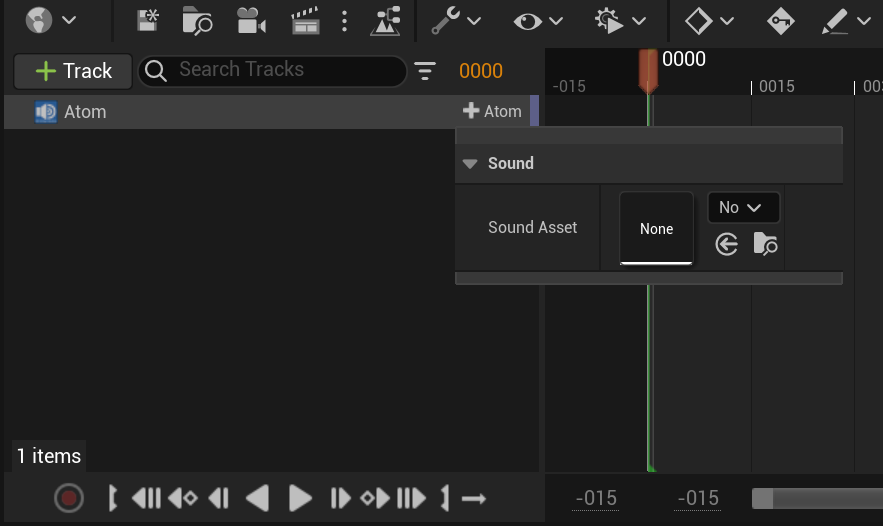
Press the Add Section button on the Atom track, select the Cue sheet, and then select the Cue.
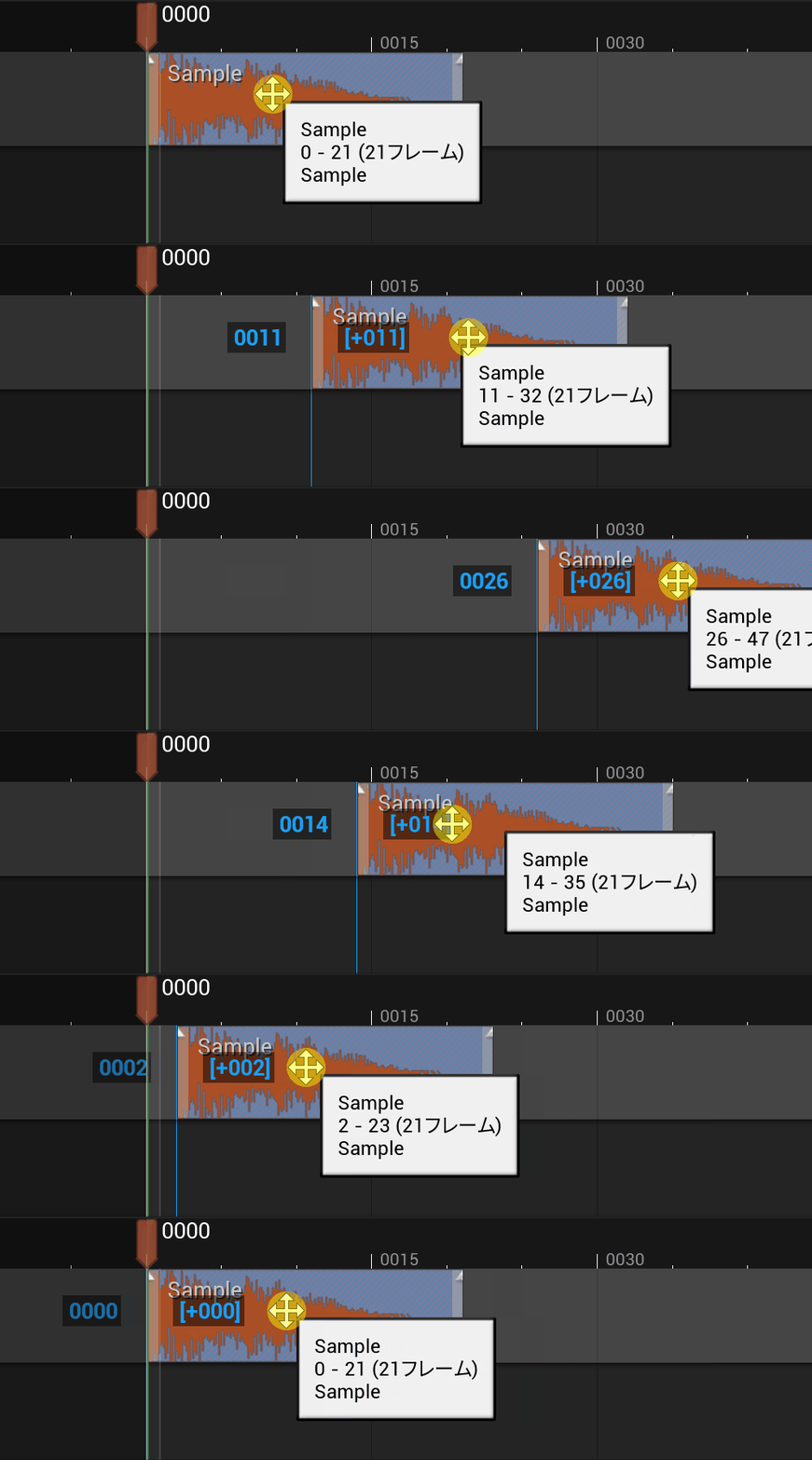
When you select a sound Cue, a section containing the selected sound Cue will be Add to the Atom track.

The audio will start playing at the "start of section range" timing.
You can adjust the audio playback timing by moving sections.
Audio playback will Stop at the following timings.
You can change the playback interval by moving the edge of the section.
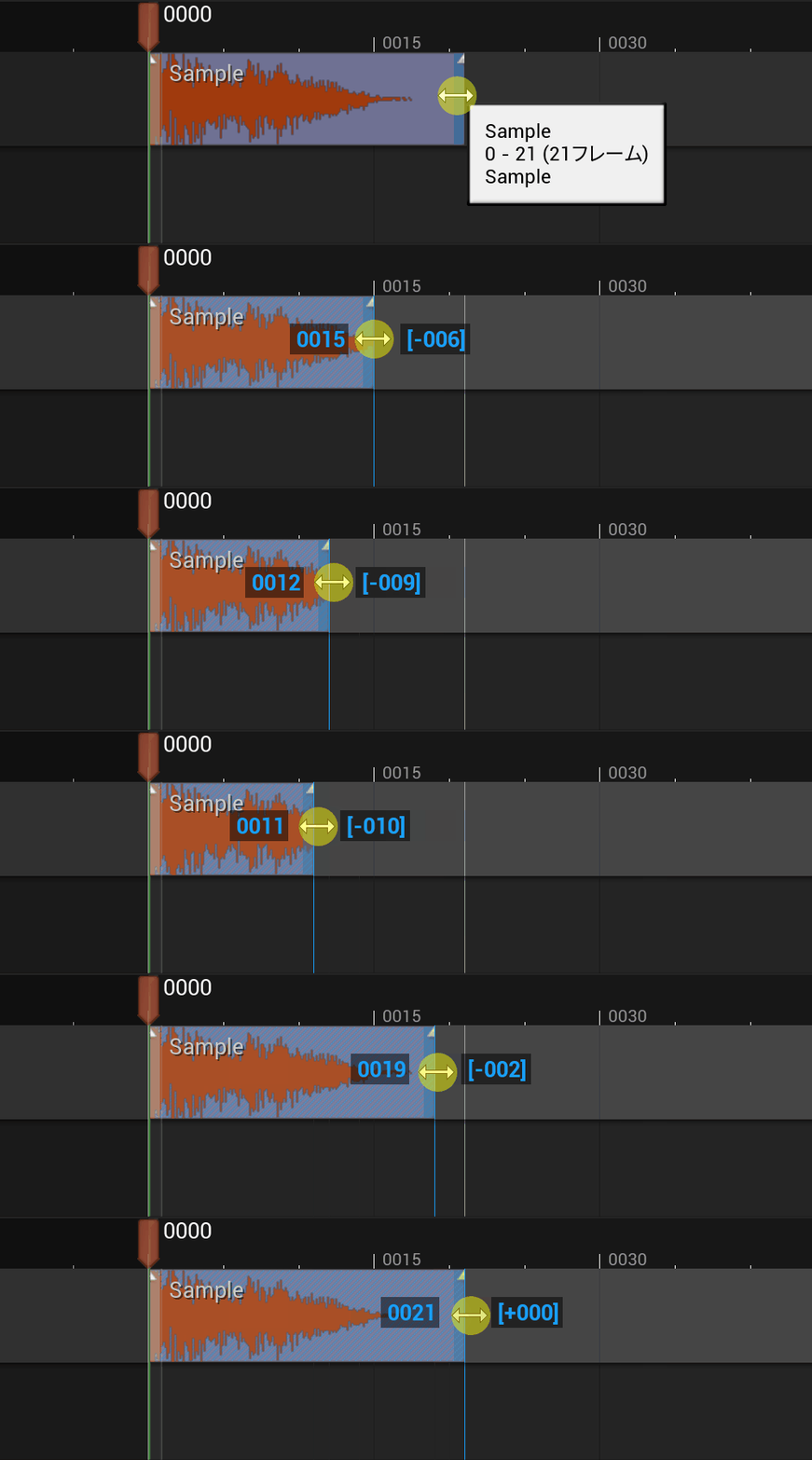
By expanding the Atom track, you can Add action Key for Volume and Pitch .
By Add this, you can change the Volume and Pitch even while the sequencer is playing.
It is also possible to change the Volume and Pitch values between action Key over time.

Open the Curve Editor from the Sequence Editor.

Select the parameter whose change you want to adjust.
The set action Key is View on the graph.
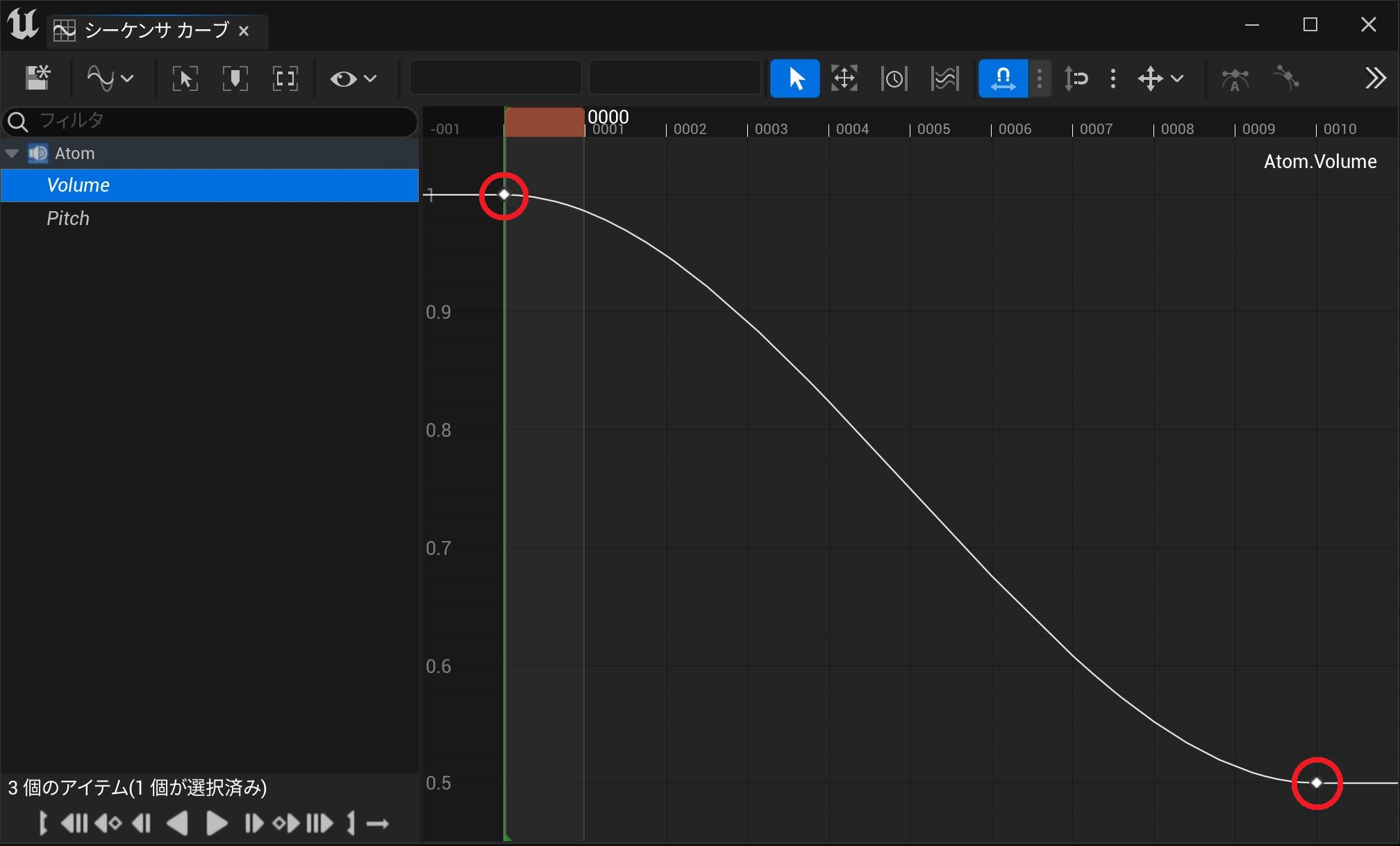
The following settings can be change by moving the action Key View on the graph.
You can also adjust the amount of parameter change by changing the curve between action Key.
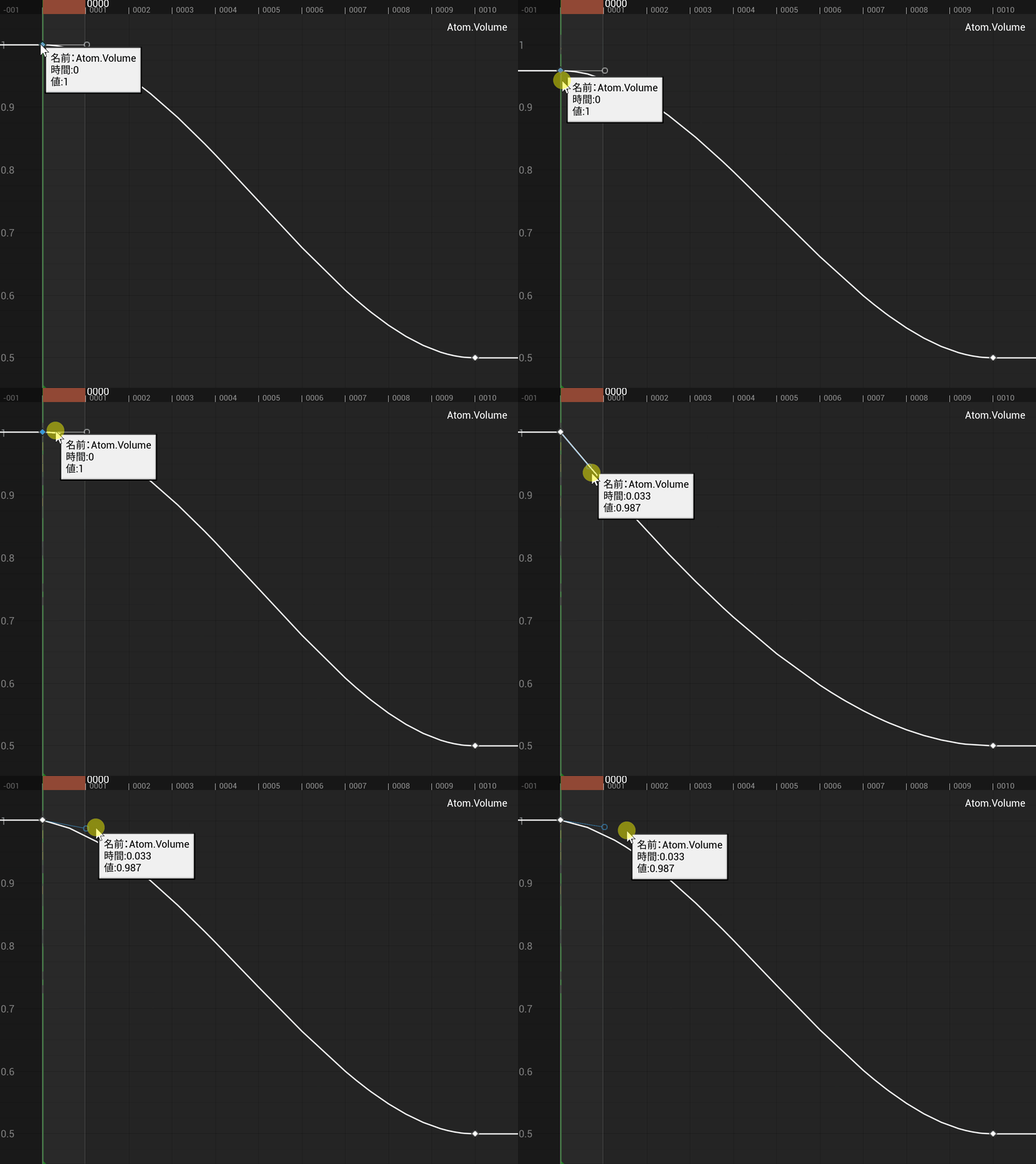
change the Pitch is change the frequency of the audio.
By Default , the CRIWARE UE plug-in is set to support frequencies up to 48kHz.
Therefore, if the maximum frequency is exceeded when change the Pitch , the change will not be processed.
Please refer to Manual for how to set the maximum frequency.

THIS SERVICE MAY CONTAIN TRANSLATIONS POWERED BY GOOGLE. GOOGLE DISCLAIMS ALL WARRANTIES RELATED TO THE TRANSLATIONS, EXPRESS OR IMPLIED, INCLUDING ANY WARRANTIES OF ACCURACY, RELIABILITY, AND ANY IMPLIED WARRANTIES OF MERCHANTABILITY, FITNESS FOR A PARTICULAR PURPOSE AND NONINFRINGEMENT.
 1.9.7
1.9.7