 |
CriWare Unreal Engine
Plug-ins for CriWare solutions.
|
|
CriWare Unreal Engine
Plug-ins for CriWare solutions.
|
In this article, we will introduce the following contents.
In the CRIWARE SDK for Unreal Engine SDK Sofdec2 Encoding Wizard .usm files.
Please set the following parameters for encoding.
| Item | Value |
|---|---|
| Movie playback environment | Standard |
| Video Codecs | Please select one of the Codecs. ・Sofdec.Prime ・H.264 ・VP9 * Some platforms are not supported. |
Please enable "Plugins -> CriWare -> CRIWARE Sofdec Plugin ".
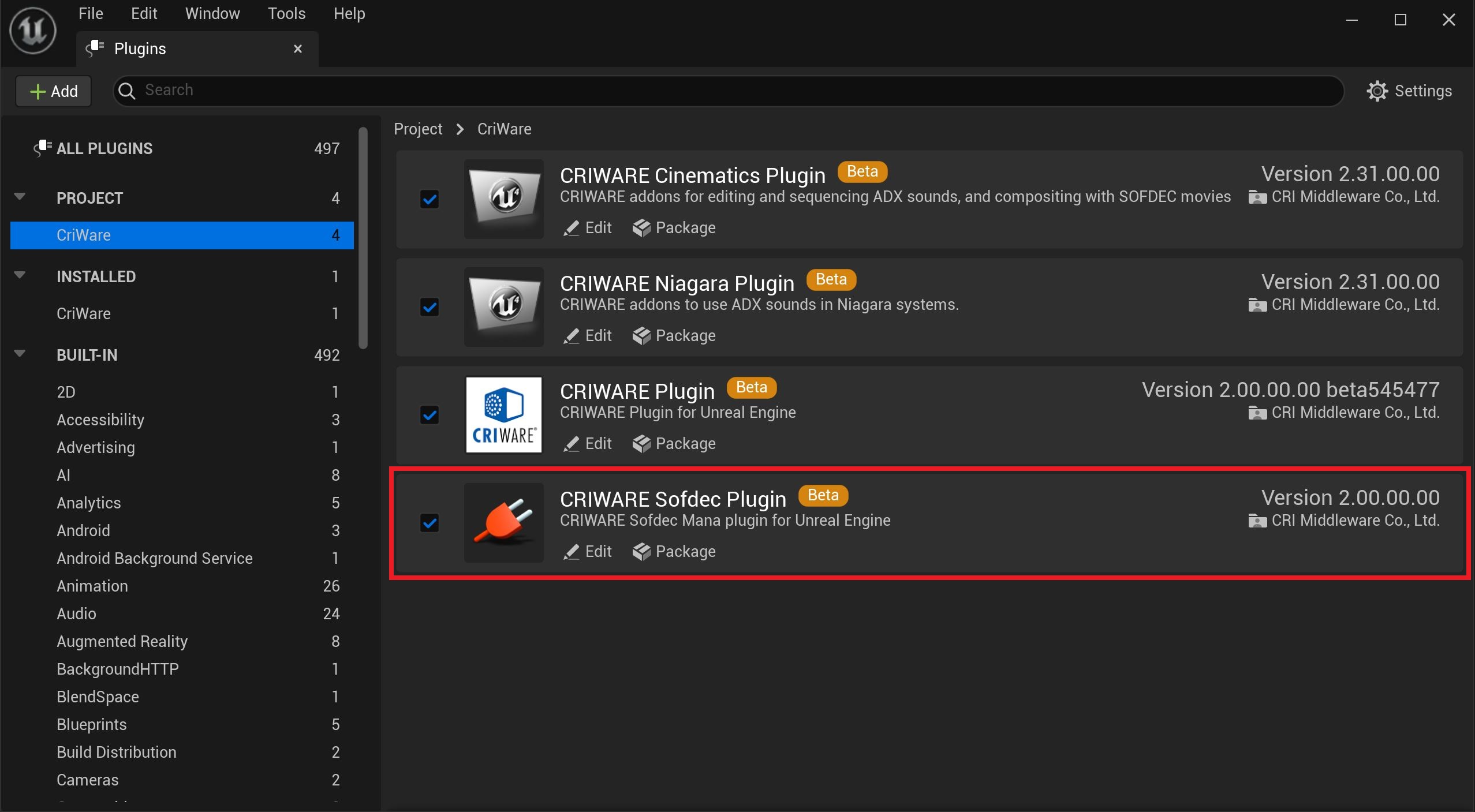
Enable Sofdec plugin has been completed.
This is an asset that holds information about .usm File .
You can obtain video track information, audio track information, etc.
It can be created by importing a usm File .
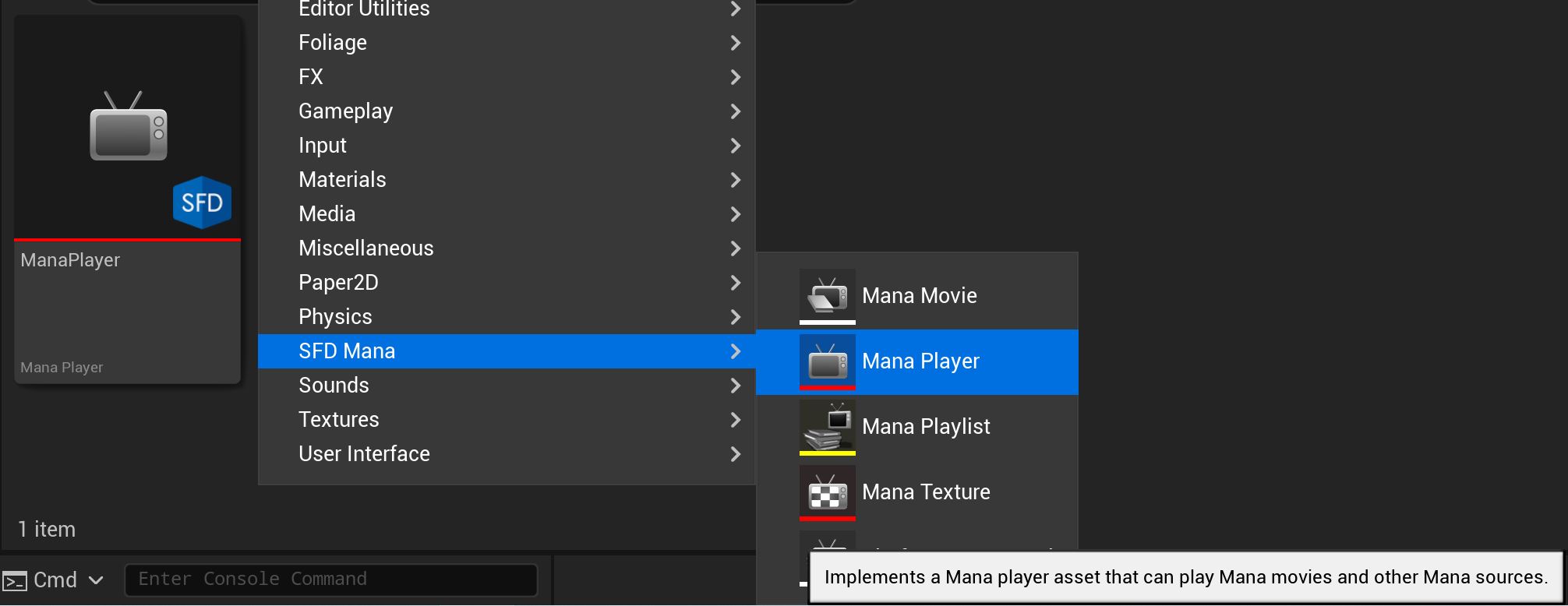
This is an asset that plays, Stop , etc. a movie.
You can create it by selecting "SFD Mana -> Mana Player" from the content browser menu.
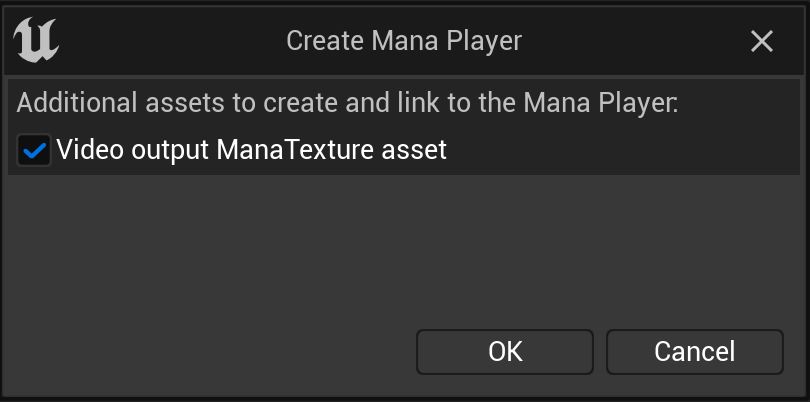
This is a texture asset that is the Output destination for the decoding results of .usm File .
You can create it using one of the methods below.
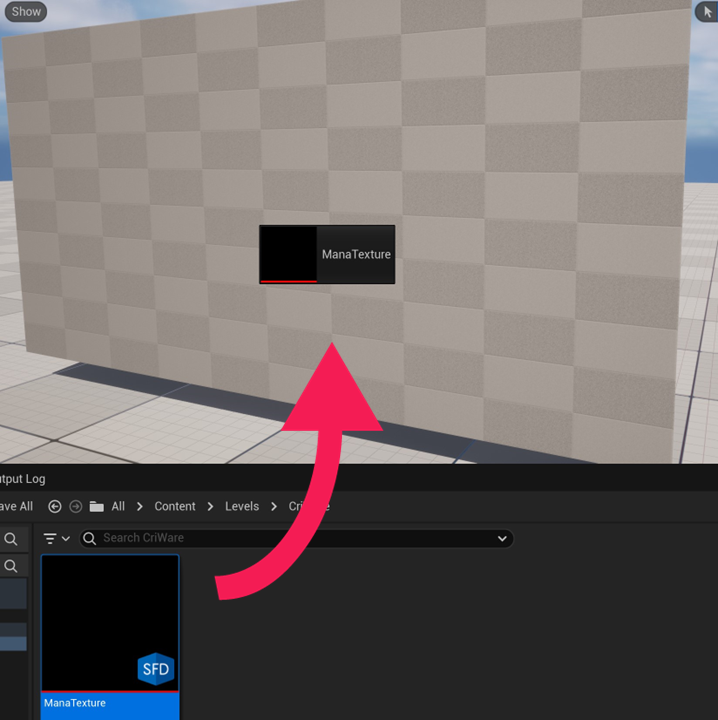
This is an asset for applying texture data of Mana Texture asset to Actor etc.
You can create it using one of the methods below.
Preparing the assets necessary to play the movie need to be completed.
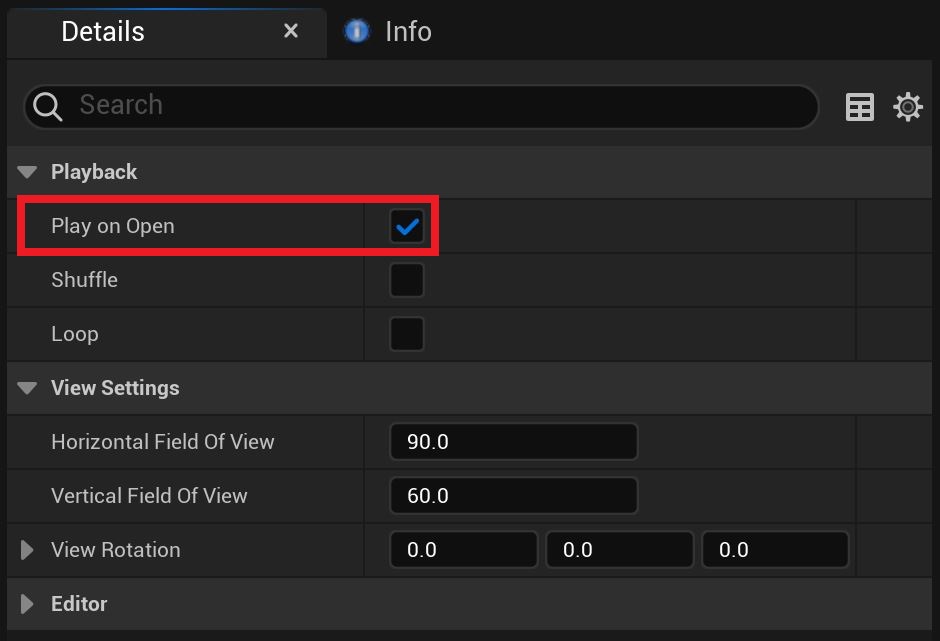
Make sure Play on Open is enabled from the Mana Player asset details panel.
call the Play process after Mana Player's Open process is complete.
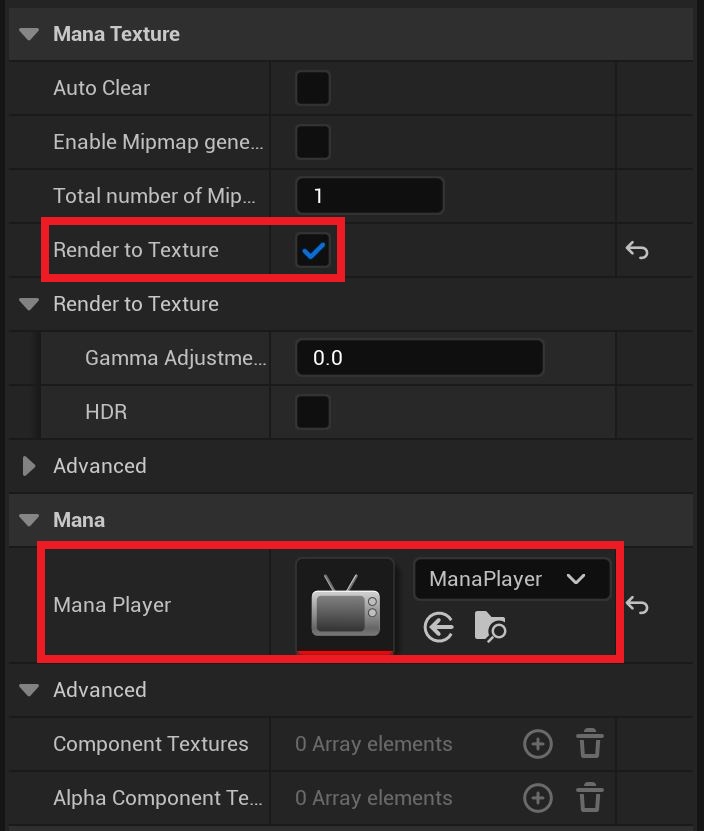
Make sure Render to Texture is enabled from the Mana Texture asset details panel.
Set the Mana Player asset to Mana Player from the Mana Texture asset details panel.
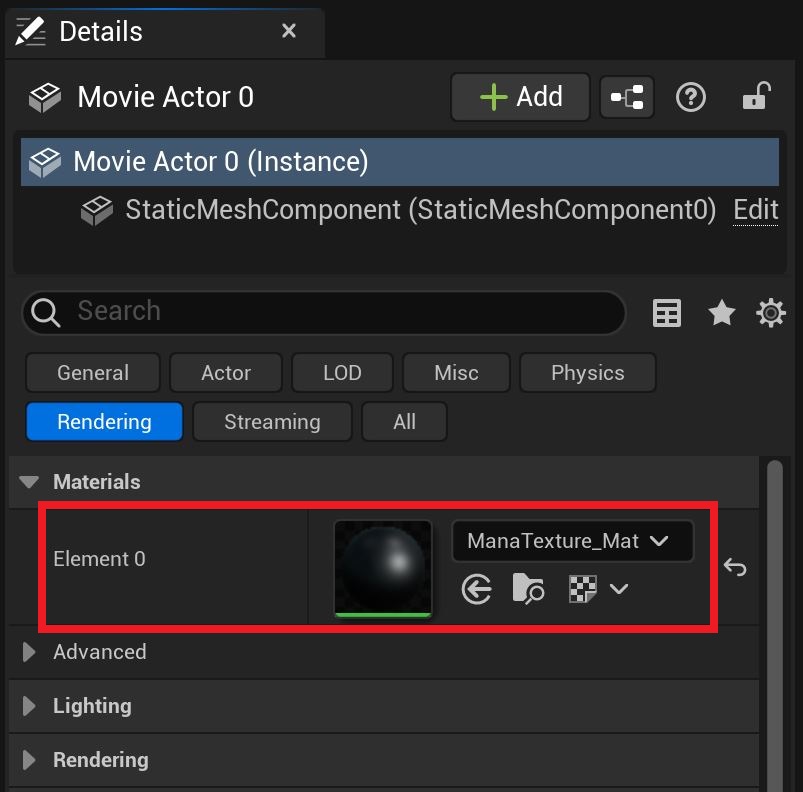
Set the Material asset in " Materials -> Element 0 " from the details panel of the Actor placed on the level.
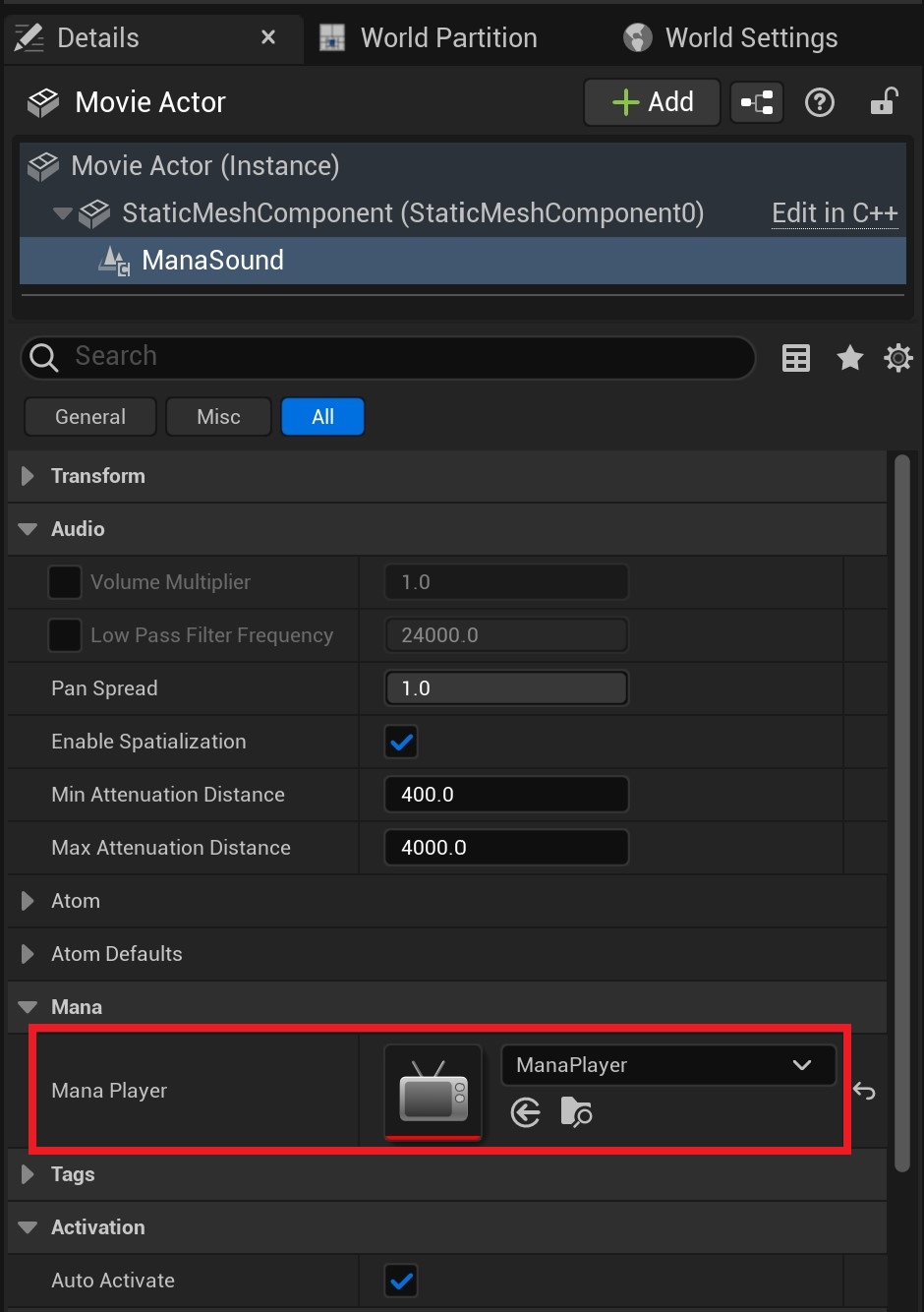
If you want to play the movie's audio at the same time, you need to Add Mana Sound Component .
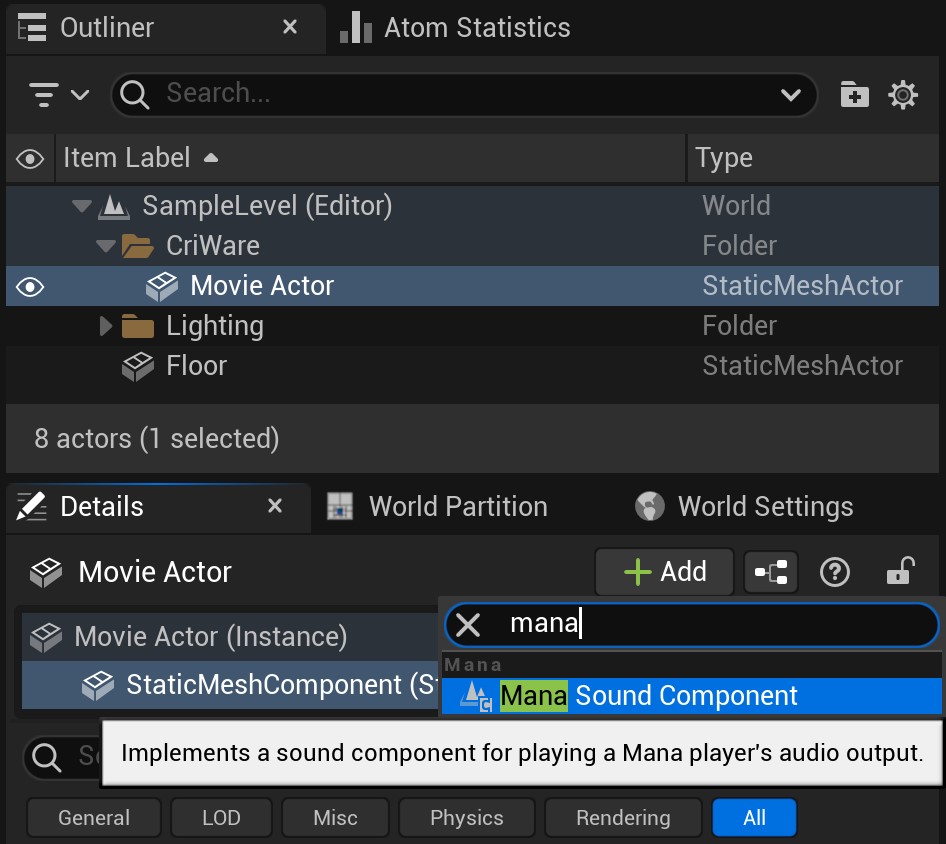
When you set up a Mana Player asset that plays a movie, the movie audio will also play at the same time.
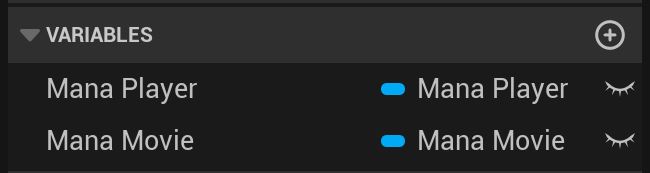
Prepare the necessary variables.
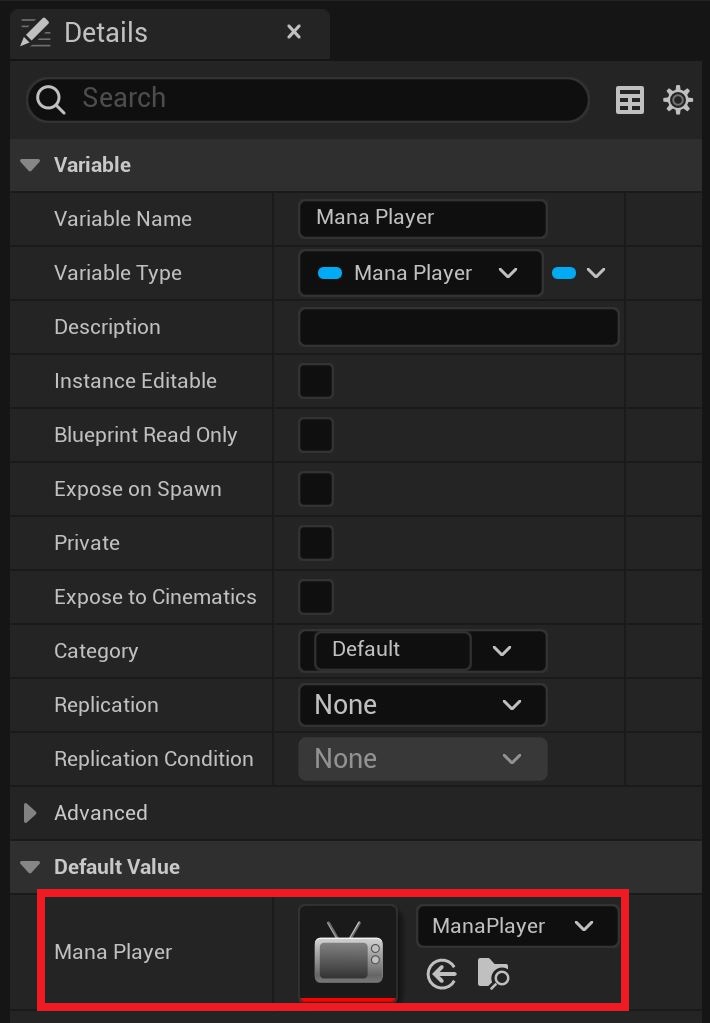
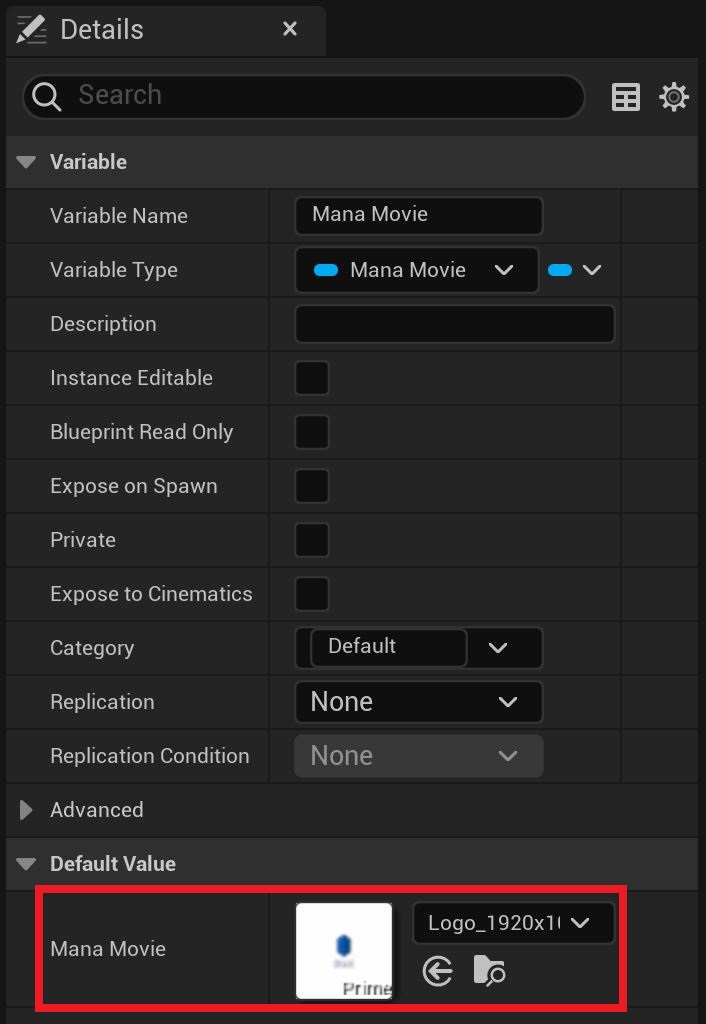
Set the asset to the prepared variable.
・Mana Player ・Mana Movie
Set the Mana Movie to play with Mana Player's Open Source .
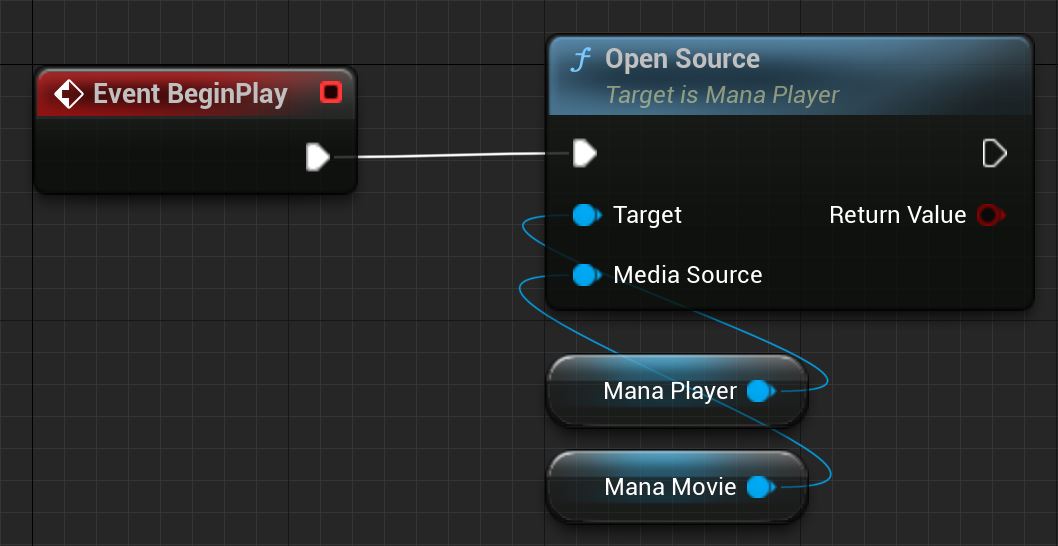
Plays the movie from the current Time Duration.
If you do this after playback Close, playback will start from the beginning of the movie.
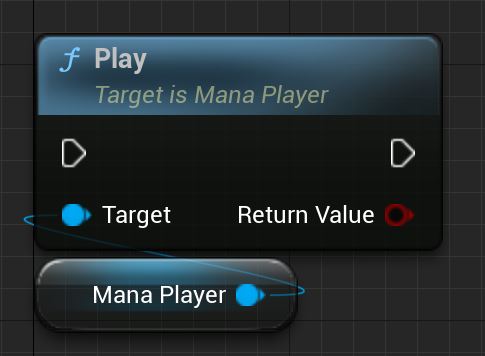
Stop the movie.
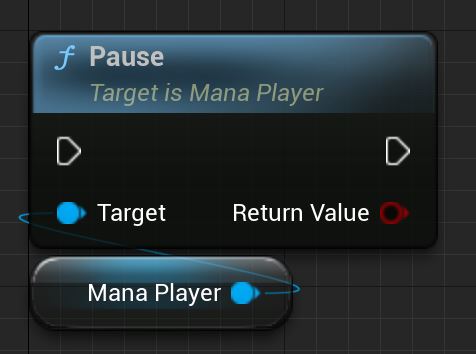
Playback starts from the beginning of the movie.
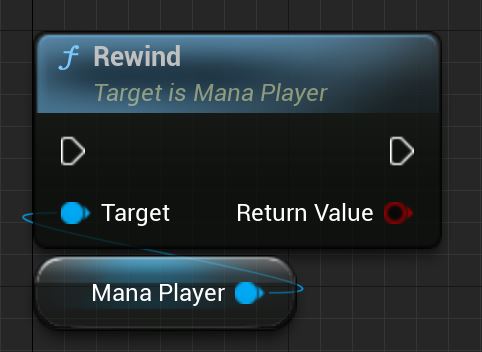
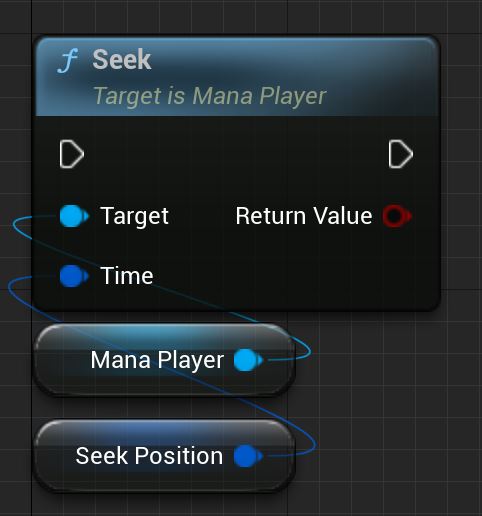
Move the movie playback position to the desired position.
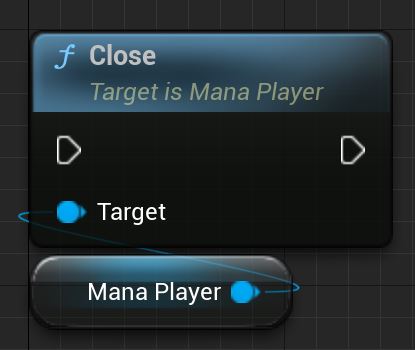
Stop playback.
Cancels the Mana Movie settings to be played.

THIS SERVICE MAY CONTAIN TRANSLATIONS POWERED BY GOOGLE. GOOGLE DISCLAIMS ALL WARRANTIES RELATED TO THE TRANSLATIONS, EXPRESS OR IMPLIED, INCLUDING ANY WARRANTIES OF ACCURACY, RELIABILITY, AND ANY IMPLIED WARRANTIES OF MERCHANTABILITY, FITNESS FOR A PARTICULAR PURPOSE AND NONINFRINGEMENT.
 1.9.7
1.9.7