CriWare Unreal Engine
Plug-ins for CriWare solutions.
Loading...
Searching...
No Matches
Atom Rack Asset

Atom Rack is the main mix element to ouput sound with ADX. An Atom Rack is the asset reprentation of an ASR Rack used by the sound render of ADX Atom.

About ASR racks in ADX Atom

In ADX sound engine, a mixage unit is called an ASR rack.

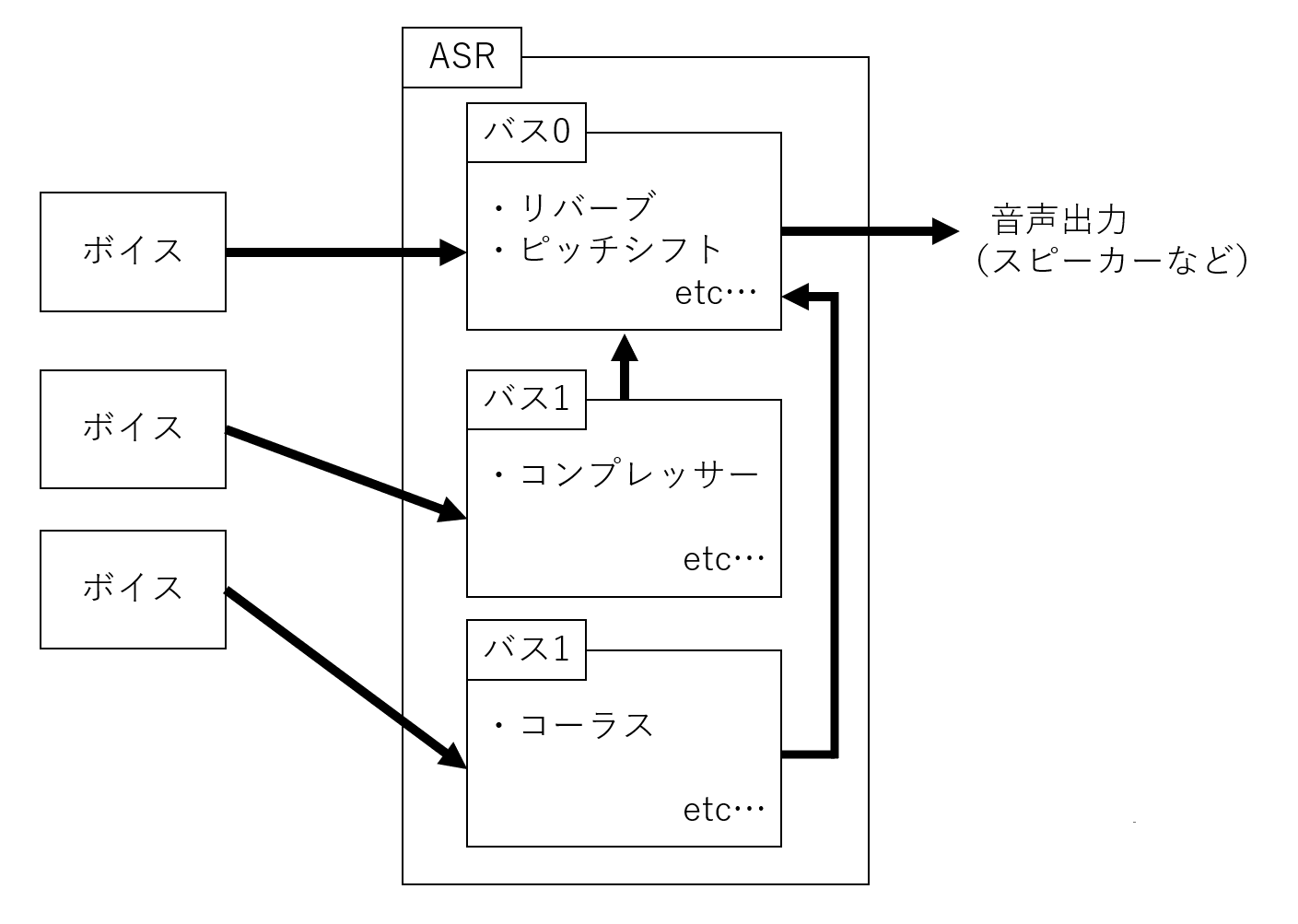
An ASR (Atom Sound Renderer) Rack is a group of DSP buses. ASR rack has always a main DSP Bus (BUS0) that is the main audio output.
A DSP Bus has for input any sound source's voices that are assigned to send audio to it, voices are panned individually (per sources 3D positioning and multi-channel based), then mixed togethers in one audio signal.
Following this, a DSP effect chain is applied to the audio signal.
Finally the bus audio ouput signal gain is attenuated or increased by a volume fader.
Except for the main DSP bus, all buses can send their audio output signal to other buses within the same ASR rack using a bus send with a volume level.

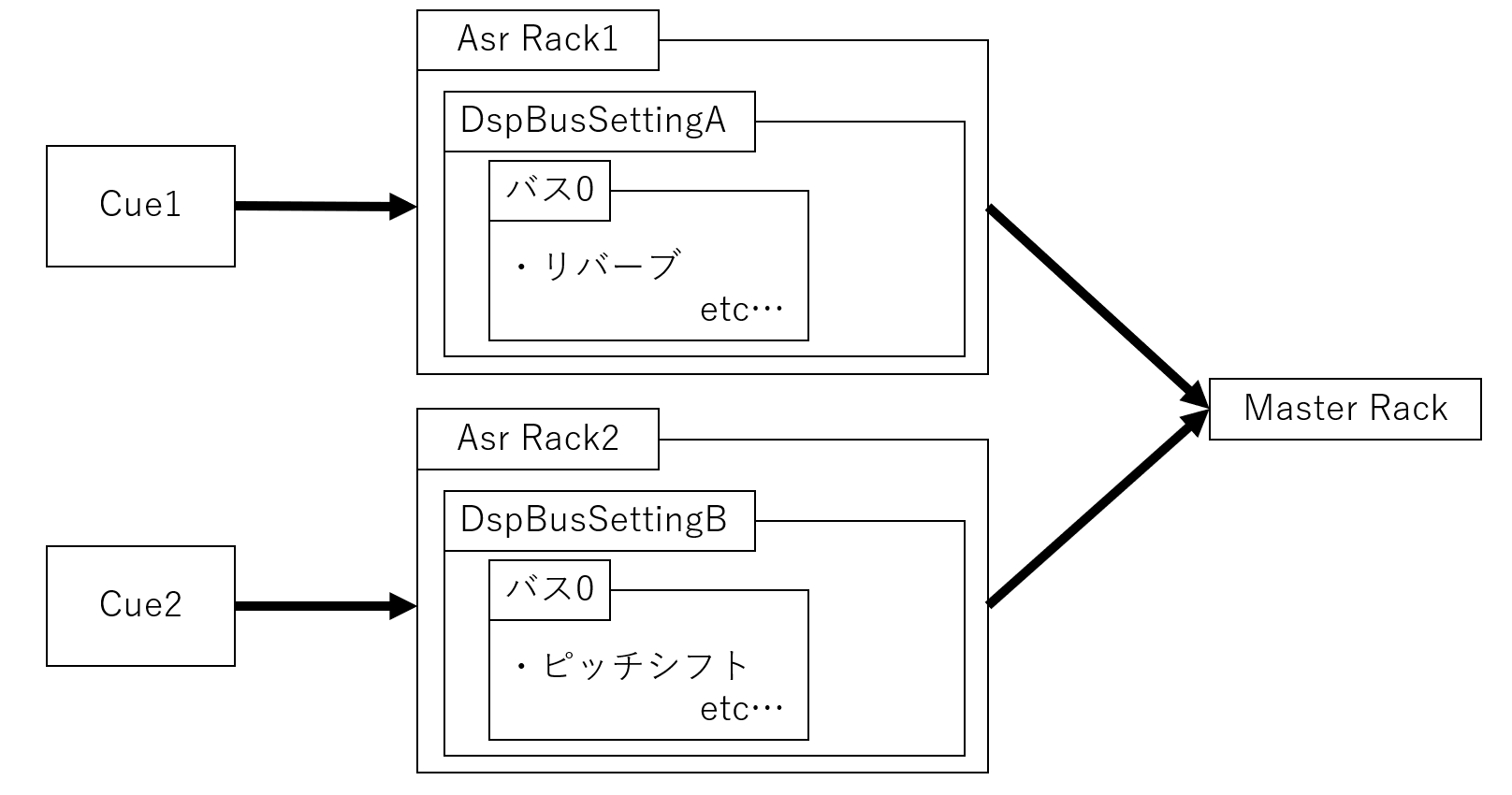
An ASR rack also defines where its final ouput signal is sent. This can be an hardware device or another ASR rack.

In the follwing diagram, two sound Cue are sent to individual ASR racks. Those two ASR racks send their output signal to a main rack that mixes them just before the main DSP bus volume fader (pre-fader stage).
For more information, please refer Basic knowledge of CRI ADX2.

For detailed diagrams above, please refer to Processing flow in the library

Create an Atom Rack

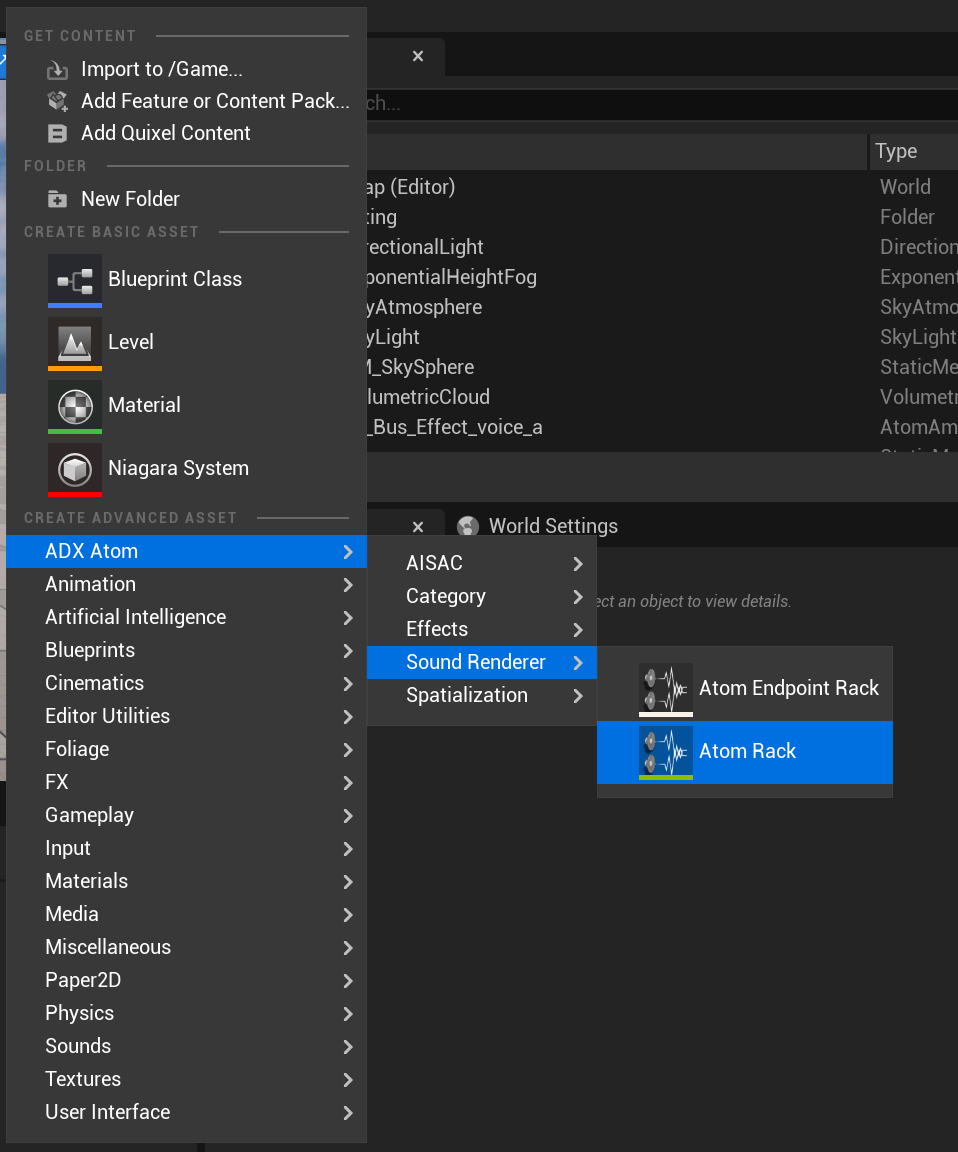
To set up a new Atom Rack, right-click from the Content Browser, then select ADX Atom > Sound Render > Atom Rack.
Setup Master Rack (main Atom rack)

ADX Atom have always a main ASR rack created when initialized.
Therefore, it needs to be linked with an Atom Rack to be setup from Unreal Editor.

You can specify the main Atom Rack in Project Settings: CriWare > ADX Atom > Sound Renderer > Master Rack
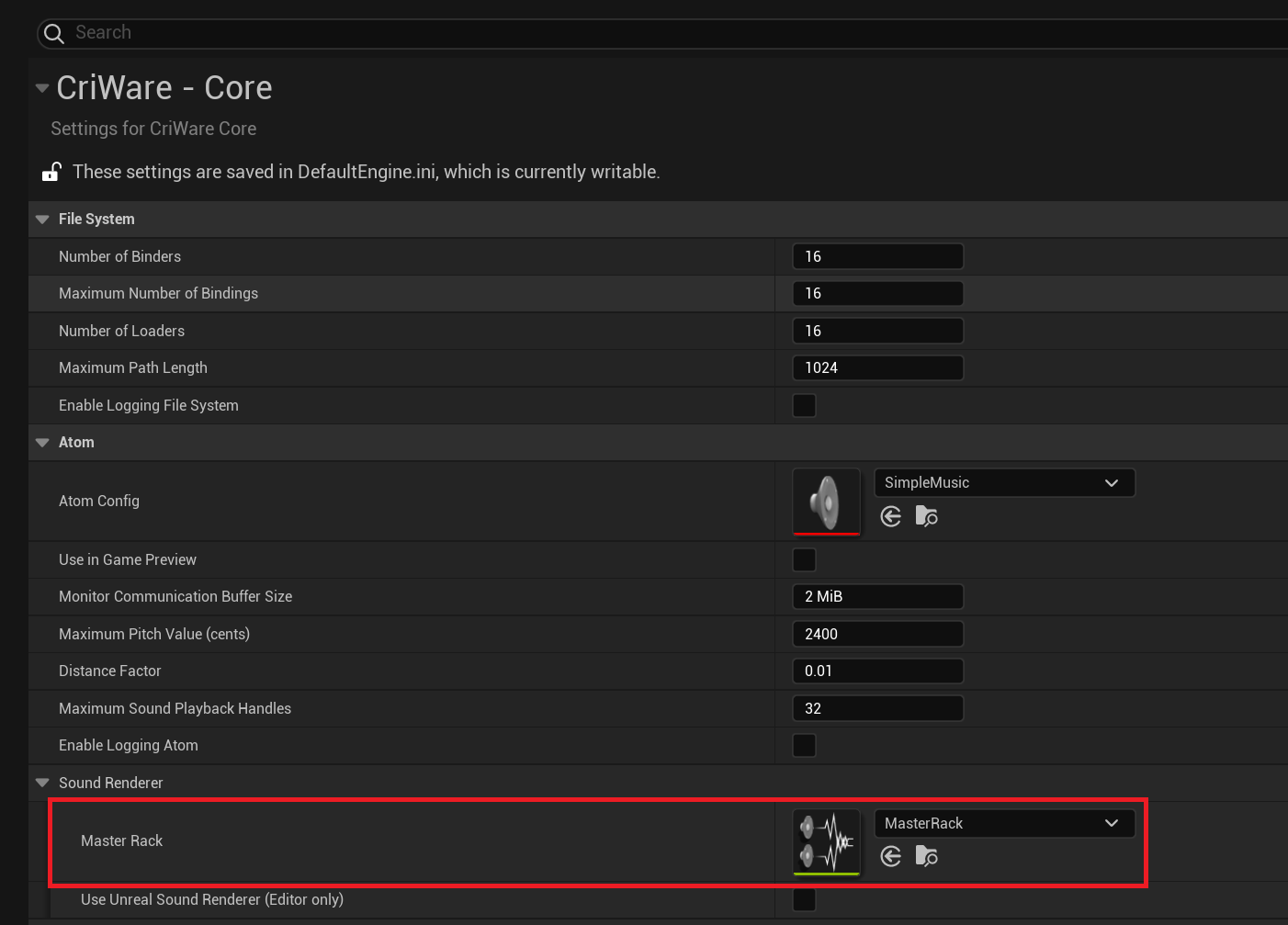
Alternatively, main Atom Rack can be set on a per Atom Config basis. Open Atom Config in Content Browser. In its Detail panel, enable Override Master Rack and assign the desired Atom Rack. When the default Atom Config is loaded it will use the specfied Rack inside the Atom Config instead the one defined in the Project Settings.

Sending Audio to an Atom Rack

By default a sound source sent its audio to the main Atom Bus or the main Atom Rack.

There are several ways to send sound sources to a Atom Rack:

  • Set up the send manually in a sound source asset.
  • Use Attenuation settings.
  • Set dynamically in a Blueprint.
  • Set it through Atom Gameplay Volumes.

Manually Set Up a Atom Rack / Atom Bus Send

To play a sound source on a Atom Rack, or to send its generated audio to a Atom Rack, assign the new Atom Rack asset to the Atom Rack property on the sound source. The Atom Rack property on sound assets is considered the base Atom Rack of the sound, and 100% of the audio is sent to that Atom Rack.

Each Atom Sound or Atom Component can send their sound to a choosen Atom Rack or to multilple DSP Atom Bus within the same Atom Rack.
A Base Rack property is given in Atom Sound with a list of Atom Bus Sends.

To open the Details panel for an Atom Sound (any classes derived from Atom Sound Base...), double-click the Atom Sound in the Content Browser.

To open The details of an Atom Sound Cue or Atom Sound Wave, first double-click the owner Atom Cue Sheet or Atom Wave Bank in the Content Browser, then double-click the Atom Sound in the Sound Browser.

You can choose an Atom rack to send the sound by checking Enable Base Rack in the Rack section.

Thes sound is send to the main DSP bus (BUS0).

To send to specific Rack's Atom bus, check Enable Bus sends and add an entry.

Attention
Mutilple bus sends to mutilple Rack is not supported in ADX sound render actually, all Atom Bus sends must be assigned within the same Atom Rack, otherwise this result to an undefined behaviour for the audio signal.

Bus Send Properties:

  • Atom Rack Sends: The Atom Rack Sends array on a sound asset is an array of further Atom Rackes to which sound sources can send a portion of their audio. Sends can be done either manually or via distance; for example, the farther away a sound is, the less audio it might send to a Atom Rack.
    • Send Level Control Method: How the source should send its audio to the indicated Atom Rack:
      • Manual: The sound sends its audio directly using the Send Level value.
      • Linear: The sound sends its audio to the Atom Rack using a linear mapping between the Min and Max Send Level, and the Min and Max Send Distance.
      • Custom Curve: Uses the Custom Send Level Curve to send its audio to the Atom Rack, instead of using linear mapping.
    • Atom Rack / Atom bus: Which Atom Bus the sound source is sending its audio to using this Atom Bus send entry.
    • Send Level: The send level to use if the Send Level Control Method is set to Manual.
    • Disable Manual Send Clamp: Enables or disables the 0–1 clamp when using the manual Send Level Control Method.
    • Min Send Level: The minimum send level to use when using the non-manual Send Level Control Method.
    • Max Send Level: The maximum send level to use when applying a Linear control method.
    • Min Send Distance: The minimum distance to use when applying a Linear control method.
    • Max Send Distance: The maximum distance to use when applying a Linear control method.
    • Custom Send Level Curve: The curve to use for mapping the minimum and maximum Send Level and Distance.

Send to Atom Rackes Using Sound Attenuation

Atom Rack sends can also be set using Atom Attenuation settings. This is a convenient way to set up Atom Rack / Atom Bus sends on large numbers of assets from one place. Since Atom Bus sends can send their audio based on distance to the listener, it makes sense to use this where distance attenuation is also defined.

For more on this method, see Atom Attenuation.

Send Dynamically to Atom Buses in Blueprint

This Blueprint function provides a way for audio components to dynamically route their audio to arbitrary Atom Buses using whatever method you choose.

Send Dynamically to Atom Rackes in Blueprint
To set a Atom Rack Send you will need:

  • Target: The Atom component to use for sending audio to the Atom Bus.
  • Atom Bus: The Atom Bus where audio will be sent.
  • Send Level: The amount of audio to send, as a % of total volume.

Also see Blueprint APIs and Atom Buses later in this document.

Send to Atom Buses using Atom Gameplay Volume

Atom Gameplay Volume supports sending audio to Atom Buses in a similar way to how sends are set up directly on sound sources. The primary difference is that the Atom Bus send is based on its location relative to the Atom Gameplay volume geometry.

The properties in the Atom Bus Send array are identical to the properties that are directly set on the sound sources themselves.

Sound sources will send their audio to a given Atom Rack Send Array based on whether the Listener Location State shows the listener inside or outside the Volume.

Atom Gameplay Volume also supports Atom Bus Override, depending on the Listener Location State. The Atom Bus is overridden by another Atom Bus, depending on whether the listener is inside or outside of the Volume.

Atom Rack Properties

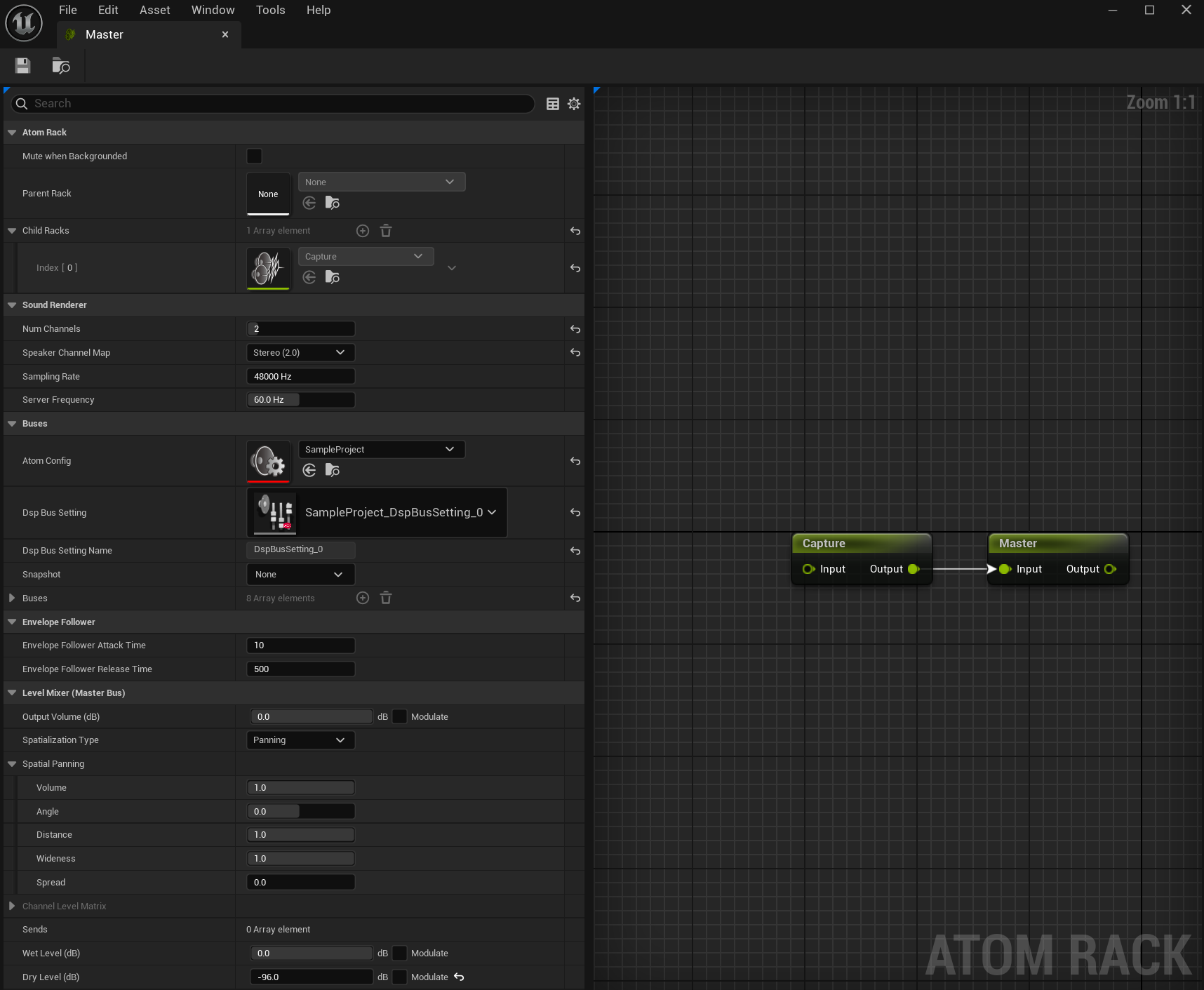
To open the Details panel for an Atom Rack, double-click the Atom Rack in the Content Browser.

Atom Rack

  • Mute When Backgrounded This property specifies whether to mute the output ausio of this Atom Rack when the application is muted or moved to the background.
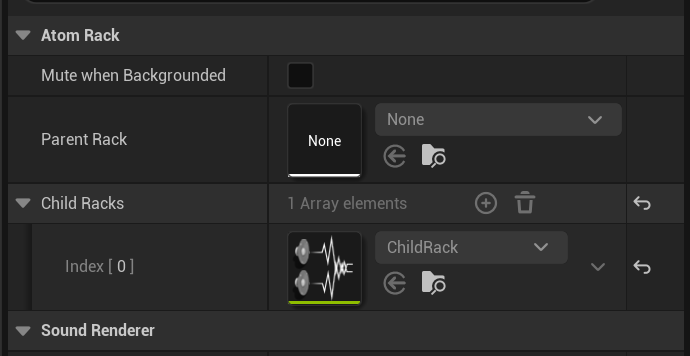
  • Parent Rack - Child Racks An Atom Rack can have one parent to send signal and multiple children that send and mix their output signals.

Rack graph editor

You can use the Rack graph editor to create parent-child relationships.
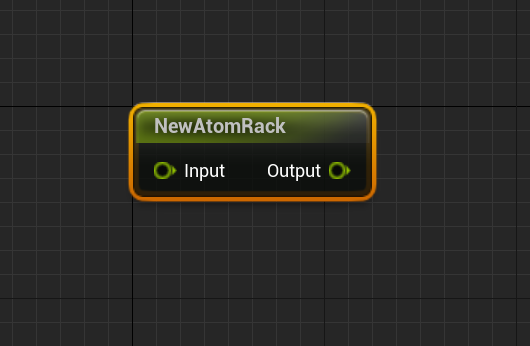
You add an Atom Rack by drag-dropping it from the Content Browser onto the Rack graph editor.
You edit the parent-child relationship by connecting the nodes as shown below.
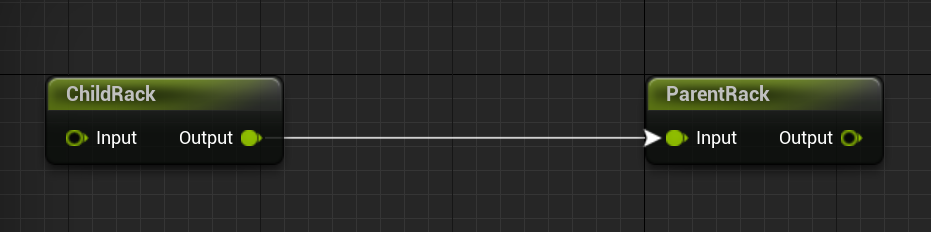
In the Rack graph editor of the Child Rack"</em> Details panel, Atom Racks are connected as shown in the image below. <br> @image{inline} html ./Images/578b87ce-639a-4b88-9529-d8821bcf4710.png "Screenshot.png"
In the Rack graph editor of the Parent Details panel, Atom Racks are connected as shown in the image below.
Sound Renderer

You can specify some sound render paremeter.
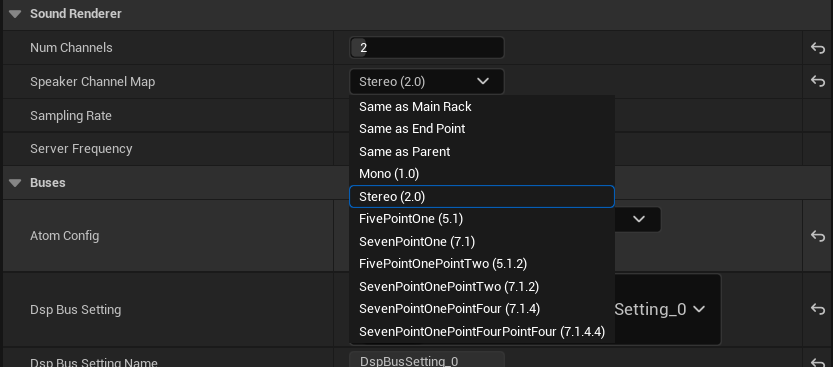
  • Num Channels (1 to 16) Is the number of channels that the rack will support at input stage.
  • Speaker Map Channels Is the speaker mapping configuration of channels that the Atom Rack will mix and map before send to DSP Atom Buses.

    Those following configurations are available:
    • Same As Main Rack
      Replicates the Speaker mapping of the main rack. (cannot be set for the main Rack.)
    • Same as End point
      Replicates the Speaker mapping of attached device output.
    • Same as Parent
      Replicates the Speaker mapping of parent Rack if assigned.
    • Mono (1.0)
      Monophonic output.
    • Stereo (2.0)
      Sterophonic output.
    • Five Point One (5.1)
      Mutichannel output: 2 Fronts, 1 Center, 2 Surrounds speakers and LFE speaker.
    • Seven Point One (7.1)
      Mutichannel output: 2 Fronts, 1 Center, 4 Surrounds speakers and LFE speaker.
    • Five Point One Point Two (5.1.2)
      Mutichannel output: 2 Fronts, 1 Center, 2 Surrounds speakers, LFE speaker and 2 Top speakers.
    • Seven Point One Point Two (7.1.2)
      Mutichannel output: 2 Fronts, 1 Center, 4 Surrounds speakers, LFE speaker and 2 Top speakers.
    • Seven Point One Point Four (7.1.4)
      Mutichannel output: 2 Fronts, 1 Center, 4 Surrounds speakers, LFE speaker and 4 Top speakers.
    • Seven Point One Point Four Point Four (7.1.4.4)
      Mutichannel output: 2 Fronts, 1 Center, 4 Surrounds speakers, LFE speaker, 4 Top speakers and 4 Bottom speakers.
  • Sampling Rate
    The sampling rate used by DSp buses. Defaults to 48000 Hz.
  • Server Frequency Indicates the update frequency of the ASR rack in the sound renderer.
    Defaults to 60 Hz and should not eed to be changed.

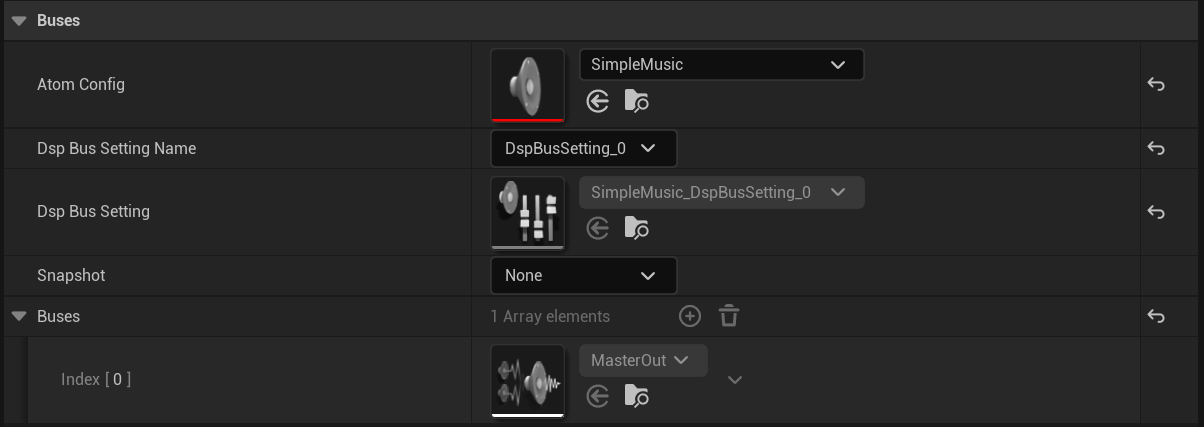
Buses (Atom Buses)

  • Atom Config The Atom Config that determine where the Atom Rack sources its DSP bus definitions from CRI Atom Craft.
  • Dsp Bus Setting Selects an Dsp Bus Setting from the specified Atom Config.

    Each time This is modified, it will re-generate all Atom Bus sub-object of the Atom Rack asset.
  • Snapshot Selects a default Snapshot from the specified Atom Config. This snap shot is immediatly applied.
  • Buses The list of Atom Bus that the selected DSP Bus settings defines. This list is not editable. You can edit Effect Chain Presets and other properties of each Atom Bus by double-clicking on them.

Following properites are a redirection of the main Atom Bus properties for convinience:

Envelope Follower (Master Bus)

When an Envelope Follower is assigned to the main Atom Bus those proserties specifies the Attack and Release Time of the follower.
See Envelope Following for more information.
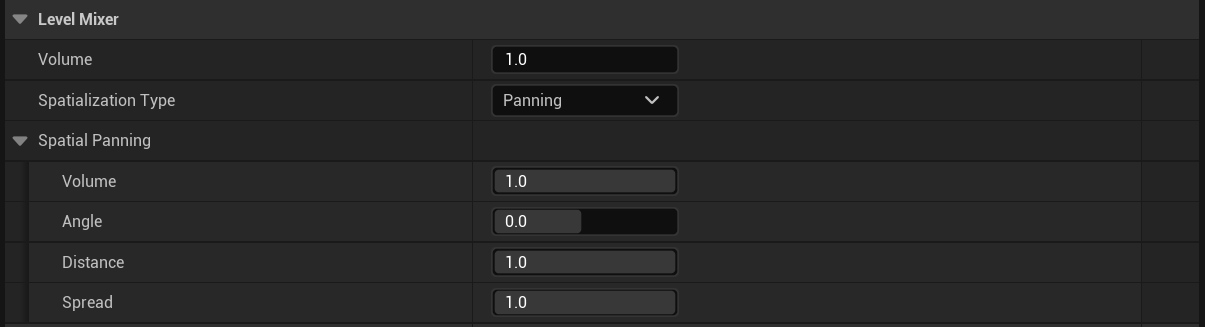
Level Mixer (Master Bus)


  • Output Volume Specify the output gain fader value of the main DSP bus.
  • Spatialization Type
    • Panning The speakers mapping levels are calculated using the spread, angle, and distance values over a spherical model.
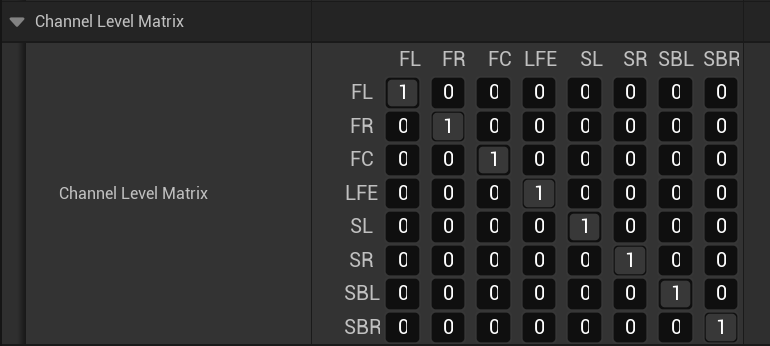
    • Send to Channels The speakers mapping levels for each mapping is configurable in a Channel Level Matrix property.

      Rows represents *inputs
      and columns represent outputs speakers.
      Each Speaker names is abbreviated: FL for Front left, FR for Front Right and so on.
      By default there are no remapping (matrix is set to identity) but it is possible to remap speakers in a fully customized way.
  • Sends The list of sends that the main Bus revceive from other Rack's DSP buses.
    This is predefined in the selected DSP Bus settings and only send level is editable.
  • Wet/Dry Level
    • Wet Level The volume level that passes througth the Effect Chain of the main DSP bus.
    • Dry Level The volume level that does not pass througth the Effect Chain of the main DSP bus. Wet And Dry sound are mixed before the volume fader of main DSP bus.

Output Volume, Wet level and Dry Level can be externaly modulated in real time from Atom Modulation system. See Atom Modulation for more information.